

ORK 4 RPG Framework Logo
  • ORK 4 GUIDE
    • Documentation
    • Tutorials
    • Extensions
    • API
  • ORK 3 GUIDE
    • Documentation
    • Tutorials
    • API
  • Support
  • Forum
  • Get ORK

ORK 4 Documentation

  • Getting Started
    • Welcome
    • First Steps (Unity)
  • Features
    • The Status System
    • Schematics
    • Schematic Nodes
    • Dialogue Importer
    • Variables
    • Selected Data
  • Components
    • Battle Components
    • Combatant Components
    • Control Components
    • Cursor Prefab Components
    • Game Starters
    • Interactable Components
    • Move AI Components
    • Scene Setup Components
  • Editor
    • The ORK 4 Editor
    • Sections & Sub-Sections
    • Node Editor
    • Schematic Editor
    • Asset Sources
    • Unity Overlay Toolbar
  • Section: System
    • System Settings
    • Languages
    • Organizer Types
    • Game States & Conditions
    • General Condition Templates
    • Object Pools
    • Prefab Savers
    • Scene Connections
  • Section: Controls
    • Game Controls
    • Interaction Settings
    • Player Controls
    • Camera Controls
    • Input Keys
    • Control Maps
    • Camera Positions
    • Battle Camera
  • Section: Gameplay
    • Game Settings
    • Formulas
    • Difficulties
    • Shortcut Slots & Settings
    • Custom Settings & Global Custom Settings
    • Global Machines
    • Machine Templates
  • Section: Status
    • Status Values
    • Status Effects
    • Attack Modifiers
    • Defence Modifiers
    • Abilities & Ability Developments
    • Status Developments
    • Research Trees
    • Damage Types
    • Status Bonuses & Templates
    • Status Condition Templates
  • Section: Inventory
    • Inventory Settings
    • Inventory Containers
    • Currencies
    • Items
    • AI Rulesets
    • Crafting Recipes
    • Equipment Slots & Slot Set Templates
    • Equipment & Available Equipment Templates
    • Shops
    • Loot
  • Section: Combatants
    • Combatants
    • Combatant Groups
    • Class Slots
    • Classes
    • Factions & Faction Benefits
    • Animations
    • Move AIs
    • Formations
    • Action Combos
  • Section: Battles
    • Battle Systems
    • Turn Based Battles
    • Active Time Battles
    • Real Time Battles
    • Phase Battles
    • Battle Spots
    • Battle AIs
    • Battle Actions Settings
    • Special Commands Settings
    • Target Settings
    • Target Selection Templates
    • Battle Range Templates
    • Battle Grid Settings
    • Battle Grid Highlights
    • Battle Grid Cell Types
    • Battle Grid Formations
  • Section: Content
    • Content Types
    • Music
    • Sound Templates
    • Areas
    • Teleports
    • Quests & Quest Tasks
    • Logs & Log Texts
    • Object Contents
  • Section: UI
    • UI Settings
    • UI Layers
    • UI Layouts
    • UI Boxes
    • HUDs
    • Notifications
    • Cursor Settings
  • Section: Menus
    • Start Menu
    • Save Game Settings
    • Option Categories
    • Menu Screens
    • Menu Requirements
    • Battle Menus
    • Loot Dialogues
    • Item Collection
    • Combatant Selections
    • Quantity Selections
    • Shop Layouts
  • Section: Texts
    • Text Settings
    • Formatting Settings
    • Flying Texts
    • Use Cost Display
    • Status Preview Display
    • Bonus Display
    • Status Change Display
    • Console Settings & Console Types
    • Text Codes
  • Sections: Editor
    • Editor Settings
    • Backups
    • Variables
    • Plugins
  • Scripting
    • Access Handler
    • Custom Nodes
    • Custom Save Data
    • Custom Component Save Data

ORK 4 Tutorials

  • ORK 4 Unity Quickstart Tutorials (3D)
    • ORK 4 Unity Quickstart 3D
    • 01 Initial ORK Setup
    • 02 Player Setup
    • 03 Music & Scenes
    • 04 UI System Setup
    • 05 UI Boxes
    • 06 Flying Texts
    • 07 Status Values
    • 08 Status Effects
    • 09 First Abilities
    • 10 Fighter Setup
    • 11 First Enemies & Battle AI
    • 12 Battle System Setup
    • 13 Animating Battle Start and End
    • 14 Random Battles
    • 15 Animating Actions
    • 16 Player Battle HUD
    • 17 Elemental Attacks
    • 18 Animating More Actions
    • 19 Inventory & Loot
    • 20 Equipment
    • 21 Loot, Start Equipment & Viewers
    • 22 Magic Abilities
    • 23 Caster Setup
    • 24 More Enemies
    • 25 Start Menu & Save Games
    • 26 Menu Screens
    • 27 Interactions
    • 28 Item Collectors
    • Quickstart Extended
  • Battle Tutorials
    • Active Time Battles
    • Phase Battles
    • Real TT 01 Real Time Battles & Tab Targeting
    • Real TT 02 Control Map, Use Ranges & Battle Area
    • Real TT 03 Camera Control, Battle AI & Reuse Time
    • Real TT 04 Damage Detection, Action Animation & Player HUD
    • Real TT 05 Switch Player & Final Adjustments
    • Hit & Miss
    • Critical Hits
    • Cast Time
    • Reuse Time
    • Grid 01: Battle Grid Setup
    • Grid 02: Highlights
    • Grid 03: Cell Types
    • Grid 04: Move Command
    • Grid 05: Scene Grid Setup
    • Grid 06: Battle Ready
    • Grid 07 Use & Affect Ranges
    • Grid 08: Better Camera Control
  • Gameplay Tutorials
    • Multiple Interaction Controllers
    • Player Group Spawn & Follow
    • Spawn Hunting Enemies
    • Gamepad Controls (Unity Input System)
    • Combined Inputs
    • Control Map for Keyboard (Shortcuts)
    • Control Map for Gamepad (Shortcuts)
    • Quests 01: Menu Screen
    • Quests 02: Hunting
    • Quests 03: Collect Potion Materials
    • Quests 04: Collect Equipment Materials
    • Quests 05: Quest Mark HUDs
    • Crafting 01: Menu Screen
    • Crafting 02: Materials & Recipes
    • Crafting 03: Getting Materials
    • Crafting 04: Proficiency & Critical Outcome
    • Shop
    • Inventory Containers
  • Schematics Tutorials
    • UI Animation Schematics
    • Flying Text Animation Schematics
    • HUD Conditional Schematics
  • UI Tutorials
    • Unity UI: Initial Setup
    • Unity UI: Status Value UI Setup
    • Unity UI: Status Effect UI Setup
    • Unity UI: Shortcut UI Setup
    • Unity UI: Dragging Notification
    • Unity UI: Interaction HUD
    • Unity UI: Shortcut HUD
    • Unity UI: Turn Order HUD
    • Unity UI: Cast Time HUD
    • Unity UI: Quest HUD
    • Unity UI: Tooltip HUD
    • Unity UI: Move Range HUD
    • Menus 01 UI Box Setup
    • Menus 02 Template HUDs
    • Menus 03 Menu Setup
    • Menus 04 Main Menu
    • Menus 05 Inventory
    • Menus 06 Equipment
    • Menus 07 Ability
    • Menus 08 Group
    • Menus 09 Quest
    • Menus 10 Crafting
  • Module 01: Status System
    • Introduction to Modular Tutorials
    • M01.1: Status Values
      • Introduction to Status Values
      • Health
      • Mana
      • Barrier
      • Base Experience
      • Class Experience
      • Spendable Experience
      • Normal Stats
    • M01.2: Modifiers
      • Introduction to Modifiers
      • Element
      • Attack Type
      • Size
      • Race
    • M01.3: Status Effects
      • Introduction to Status Effects
      • Buffs
      • Debuffs
      • Poison
      • Regeneration
      • Blind
      • Stun
      • Sleep
      • Silence
      • Enchants
      • Charm
      • Doom
      • Reflect
  • Module 02: Actions
    • Introduction to Actions
    • M02.1: Formulas
      • Introduction to Formulas
      • Physical Damage Formula
      • Magical Damage Formula
      • Hit Chance
      • Critical Chance
    • M02.2: Abilities
      • Introduction to Abilities
      • Base Attack
      • Elemental Magic Spells
      • Steal Ability
      • Drain
      • Healing Spell
      • Cure
      • Buff Abilities
      • Debuff Abilities

ORK 4 Extensions

  • Plugins
    • Save Game Compression Plugin
  • Schematic Nodes
    • Footstepper Nodes (Unity)
  • Scripts
    • A* Pathfinding Movement Component (Unity)
    • PolyNav 2D Movement Component (Unity)
    • Cinemachine Camera Control Type (Unity)
    • Rewired Input Key (Unity)
    • Unity Legacy Input Key (Unity)
    • Core GameKit Wrapper (Unity)
    • Pool Boss Wrapper (Unity)
View Categories
  • Guide
  • ORK 4
  • ORK 4 Tutorials
  • Battle Tutorials

Hit & Miss

0:00 / 3:05
  • View as Markdown Open this page as plain Markdown (opens in a new tab)
  • Open in ChatGPT Ask questions about this page (opens in a new tab)
  • Open in Claude Ask questions about this page (opens in a new tab)
  • Open in Google AI Studio Ask questions about this page (Google account required) (opens in a new tab)

In this tutorial we’ll add hit chances and miss flying texts.

Abilities and items can use a hit chance to determine if a target was actually hit – only hit targets will receive status changes.

We’ll set up:

  • hit chance formula
  • miss flying text
  • add hit chance to physical abilities

This tutorial is based on the ORK 4 Unity Quickstart 3D tutorials, but can be used in any project.

Hit Chance Formula #

We’ll use a formula to calculate the hit chance, it’s calculated like this:

(User.DEX / Target.AGI) * 100

It uses the following values:

  • User.DEX
    The user’s DEX status value.
  • Target.AGI
    The target’s AGI status value.

The result will be limited to values between 0 and 100.

Open the ORK editor, navigate to Gameplay > Formulas and add a new formula.

Formula Settings #

  • Name
    Set to: Hit Chance
  • Use Minimum Value
    Enable
  • Minimum Value
    Select: Value > Value
    Set the value to: 0
  • Use Maximum Value
    Enable
  • Maximum Value
    Select: Value > Value
    Set the value to: 100

Status Value #

Add Node > Combatant > Status Value

Add the user’s Dx.

  • Operator
    Select: Add
  • Status Origin
    Select: User
  • Status Value
    Select: DEX

Status Value #

Add Node > Combatant > Status Value

Divide by the target’s agility.

  • Operator
    Select: Divide
  • Status Origin
    Select: Target
  • Status Value
    Select: AGI

Value #

Add Node > Value > Value

Multiply by 100.

  • Operator
    Select: Multiply
  • Value
    Select: Value > Value
    Set the value to: 100

Miss Flying Text #

We’ll set up a flying texts to show ‘Miss’ when an attacked missed the target.

Navigate to Texts > Flying Texts.

Miss #

Click on Add Flying Text.

  • Player/Ally/Enemy
    Enable
  • Use Content Icon (Content)
    Enable
    The icon of the action that missed it’s target will be used.
  • Text (Content)
    Set to: Miss

Abilities #

We’ll update all physical attack abilities, i.e.:

  • Attack
  • Poison Attack
  • Fire Attack
  • Water Attack
  • Earth Attack
  • Wind Attack
  • Stun Attack

The setup is the same for all abilities – make use of the copy/paste functionality of the context menu to quickly add it to all abilities.

Target Settings > Hit Chance #

  • Hit Chance
    Enable
  • Hit Chance (%)
    Select: Value > Formula
    Select formula: Hit Chance

Save Changes #

And that’s it – click on the Save Settings button at the bottom of the editor.

Testing #

Hit play and fight a bit.
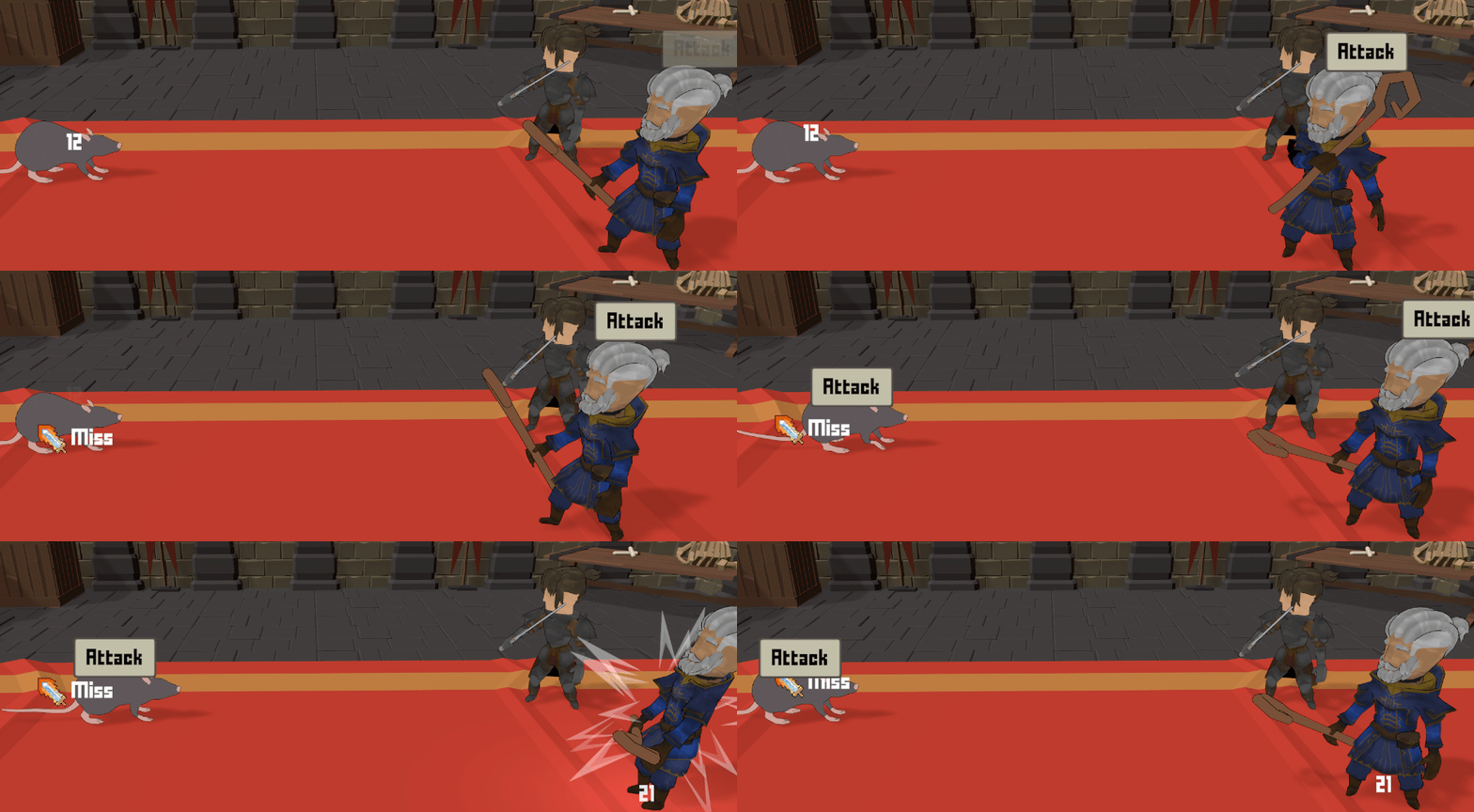
You’ll notice some attacks will miss their target.

Update Attack Schematics (Optional) #

The attacks still play a hit particle effect when the hit fails – let’s change that.

Open the Attack schematic we’re using to animate attacks in the schematic editor. It currently looks like this:

We’ll swap the Spawn Prefab and Calculate Action nodes – select both nodes (either drag-selection over both nodes or use shift+click to select multiple nodes) and use the context menu: Swap Nodes

Calculate Action #

We’ll enable using a separate next slot for Miss outcome of the calculation.

  • Use ‘Miss’ Next
    Enable

Connect the Miss next slot to the Wait node.

The schematic should now look like this:

Click on Save Schematic at the bottom of the editor to save the changes.

Testing Again #

Hit play again and fight a bit more.
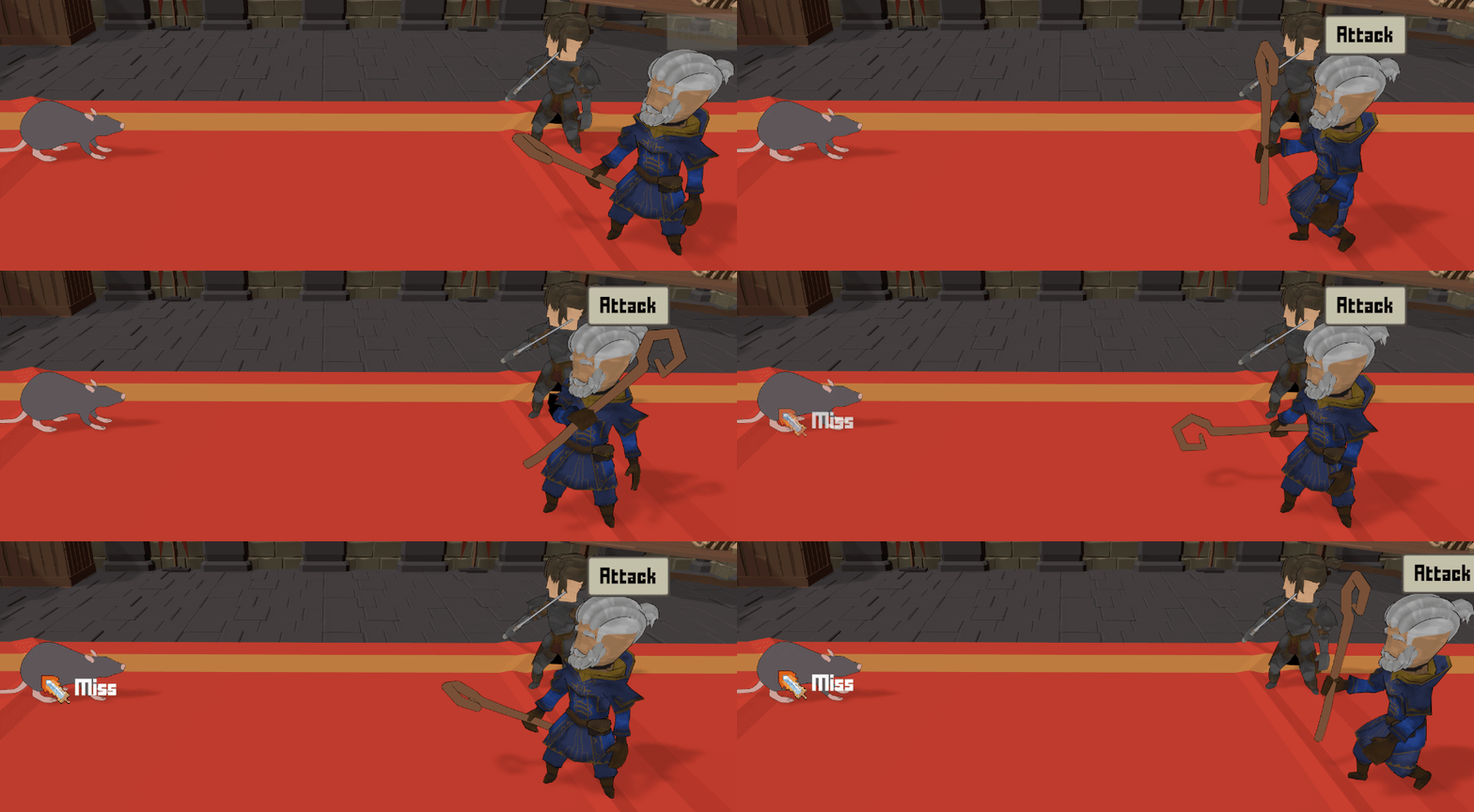
Missing attacks no longer show particle effects – great!

Table of Contents
  • Hit Chance Formula
    • Formula Settings
    • Status Value
    • Status Value
    • Value
  • Miss Flying Text
    • Miss
  • Abilities
    • Target Settings > Hit Chance
  • Save Changes
  • Testing
  • Update Attack Schematics (Optional)
    • Calculate Action
  • Testing Again
Sitemap
  • Showcase
  • ORK 4 Guide
    • Documentation
    • Tutorials
    • Extensions
    • API
  • ORK 3 Guide
    • Documentation
    • Tutorials
    • API
  • ORK 2 Hub
    • Tutorials
    • Plugins
    • API
  • Support
  • Forum
  • Get ORK
  • Contact
  • Blog
  • Makinom
  • gamingislove.com
Categories
  • News (75)
  • ORK 2 (137)
    • Tutorial (137)
      • Game tutorial (50)
      • Gameplay (32)
      • How-to (55)
  • Release (158)
Search

© 2015 Gaming is Love e.U.

Disclosure: This site may contain affiliate links, which means I may receive a commission if you click a link and purchase something that I have recommended. While clicking these links won’t cost you any money, they will help me fund my development projects while recommending great assets!