

Optionally use slot-based inventory containers, where each item stack occupies a slot.
Inventory containers are found in Inventory > Inventory Containers.
General Settings #
The general settings define settings used by all inventory containers.
Use Settings #
The general settings define if inventory containers are used:
- Disable
Not used. - Enable
Used by all combatants. - Player Only
Used only by the player group.
Additionally, you can define an offset that’s added when displaying inventory slot indexes. The first index of the first slot is 0, e.g. to display the first slot as 1, set the Slot Index Display to 1.
Notifications #
Inventory containers can display notifications when there are only a few slots available.
- Free Slots Remaining
Displays a notification when only a defined number of free slots are available.
Is not displayed for 1 or 0 free slots. - One Free Slot Remaining
Displayed when only a single free slot is available. - No Slot Available
Displayed when the last slot was filled.
Container Setup #
You can set up multiple inventory containers with slots, e.g. to separate items and equipment, or separate based on content type. This can also be used to add additional inventory space later in the game.
Slot Settings #
The inventory container defines how many slots it contains.
The slots are defined using a number value selection, i.e. you can also use a formula or a variable to define the number of available slots and have them change as the game progresses.
If the slot number changes and items are lost due to that, these lost items can optionally be remembered and added again when free slots are available.
Items #
Only content that’s enabled here will be stored in the inventory container.
You can individually enable currencies, items, equipment, AI rulesets and crafting recipes.
Content Types #
You can optionally limit which content types can be stored in an inventory container.
Notifications #
Optionally replace the default notifications set up in the general settings with custom notifications for an inventory container.
How it works #
Inventory containers only contain the items and content types that are set up for them.
Adding an item that can be stored in one of the inventory containers can only be added if there is a free slot – if no free slot is available, the item can’t be added to the inventory.
Items that are not part of a container will be stored in the regular inventory. E.g. no container has currencies enabled, so currencies don’t occupy slots and are still added to the inventory even if all slots are occupied.
In addition to this, the standard inventory’s features are also used in inventory containers, e.g. quantity limits, stack limits and inventory space.
UI #
Inventory containers are displayed using an Inventory Container (Slots) menu screen part.
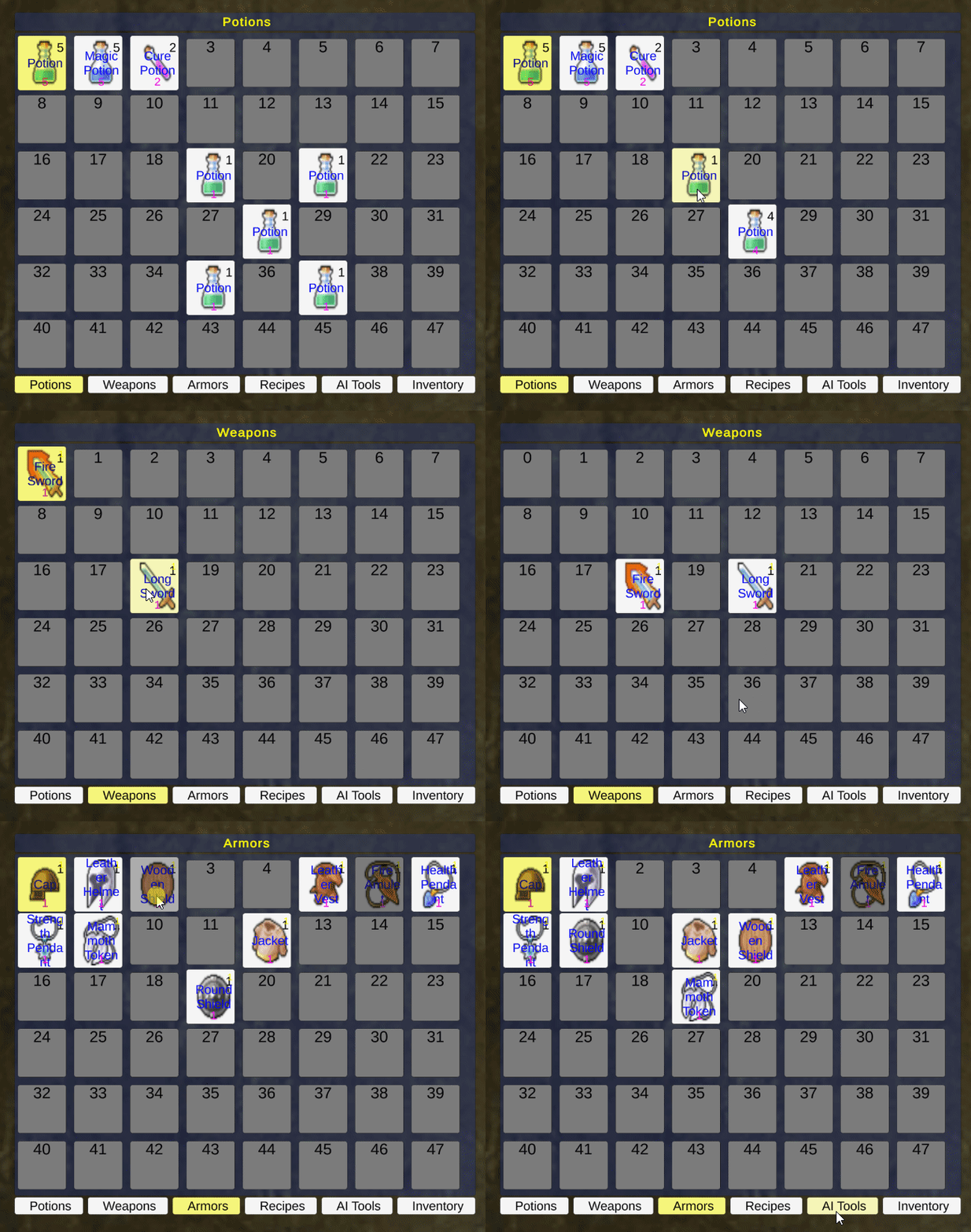
How the slots are arranged depends on the used UI box and UI module. E.g. in Unity using the Unity UI module can use a Grid Layout Group component to arrange them in a grid.
The content of an empty and occupied inventory slot can use HUDs to add a more complex setup. Occupied slots are shortcuts of the items, equipment, etc. – i.e. you can use shortcut UI for their display.