

Shortcut slots are used to assign actions like abilities or items to slots, allowing a wide variety of gameplay mechanics.
The shortcut settings are found in Gameplay > Shortcut Settings.
Shortcuts are instances of:
- abilities
- items
- equipment
- currencies
- crafting recipes
- AI rulesets
- special commands (defend, escape, etc.)
- grid actions (grid move, grid orientation, etc.)
A well known use case for shortcut slots are skillbars and hotkeys, i.e. displaying shortcuts in HUDs and using them via control maps (inputs).
Shortcut Slots #
A shortcut slot can be assigned with the following things:
- Abilities, including a combatant’s base attack and counter attack or the class’s ability
- Items
- Equipment
- Currency
- Crafting Recipes
- AI Rulesets
- Special actions, e.g. defend, escape, grid move, etc.
Shortcut List #
Shortcut slots are arranged in lists – each list can contain an unlimited amout of shortcut slots.
There are two types of shortcut lists available:
- Combatant
These shortcut lists are bound to combatants, i.e. each combatant has their own shortcut lists/slots. - Group
These shortcut lists are bound to groups, i.e. all combatants of that group have access to these shortcuts.
Both combatants and groups can have multiple shortcut lists. Only shortcut list is considered active (for combatant and group 1 active list each) – the active shortcut lists can be accessed via the shortcut list index -1.
Accessing a shortcut #
A shortcut can be accessed via it’s list index and it’s slot index. This is e.g. used in control maps when a key is assigned to a shortcut slot.
The shortcut list index -1 accesses the currently active combatant or group shortcut list. E.g. a HUD or control map using shortcut list -1 will display different shortcut slots when the active shortcut list changes.
When defining a specific list (0 or above), the used slot will always be the same, e.g. list index 0 and slot index 3 will always refer to the same list and slot.
Shortcut Settings #
The shortcut settings manage some basic and default settings for shortcut slots/lists. They can be found in Gameplay > Shortcut Settings.
Define the number of available shortcut lists for combatants and groups – classes and combatants can optionally override the list counts, as well as add or replace to the default shortcut assignments and auto add/arrange slots. You can also set up to only have one shortcut of the same kind per shortcut list, e.g. to prevent the same ability or item from being added multiple times.
Slot Content Information #
Define the content information for shortcut slots. This information can be used in other UI (e.g. HUDs) to display the name and other content information of shortcut slots.
Default Slot Content #
This content information is the default information used by all slots and also used as fallback if no other content information is found.
List Content #
You can optionally add different content information for a defined shortcut slot list.
E.g. have different content information for shortcut slots of list 0 and list 1.
Slot Content #
You can optionally add different content information for a defined slot (list and slot index).
E.g. have a different content information for list 0 slot 1 and list 0 slot 2.
Using the list index -1 uses the slot information for all lists.
Shortcut Assignments #
Define shortcut slot assignments, e.g. assigning a specific ability or item to a defined slot.
Each class and combatant can add or replace the default shortcut assignments.
Auto Add Slots #
Automatically add new shortcuts to defined slots, e.g. assigning newly learned abilities or collected items to a free slot (e.g. on the index range 0-4).
Each class and combatant can add or replace the default auto add slots.
Auto Arrange Slots #
Automatically arrange shortcut slots to fill empty slots, e.g. removing slot at index 1 would move up slots from index 2 and above to fill the gap.
Each class and combatant can add or replace the default auto arrange slots.
UI Settings #
Set set up a general default shortcut UI for all shortcuts as well as default UI for individual shortcut types (e.g. abilities, items, etc.). The Default Empty UI settings are used to display an empty shortcut slot (e.g. to display the slot’s index).
Displaying a shortcut in a HUD uses a UI setup of the shortcut. The actual setup depends on the used UI module, e.g. in Unity the Unity UI module will use a prefab for this. See this tutorial for example setups.
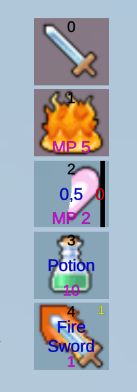
You can set up different UI setups by using UI keys. The default UI setup (without key) will be used if no matching key is found.
This allows you to have differently styled shortcuts in parts of the UI. E.g. a HUD showing the player’s shortcut slots could show a complex setup with icon, slot index and use cost/quantity, while an inventory menu only shows icon and quantity.
Each individual ability, item, etc. can override the default UI settings with a custom setup.
Assigning Shortcut Slots #
There are different ways to assign shortcuts in a running game.
Menu Screens #
Some menu parts offer functionality to assign shortcuts, either as their default action or using a sub-menu.
Drag and Drop #
Dragging a shortcut from a source (e.g. a menu screen) and dropping it on a shortcut slot (e.g. in a HUD) can be used to assign the shortcut to the slot.
You can also drag/drop shortcuts within a HUD to change the arrangement.
The shortcut HUD setup offers different options for which method to allow and what happens when assigning from within the HUD (e.g. swap the shortcuts or remove the old).
Schematics #
The Change Shortcut node can be used to change shortcut assignments.
You can also use the Change Shortcut List node to change the active shortcut list (i.e. available via list index -1).
Using Shortcut Slots #
There are different ways to use a shortcut slot in a running game.
Control Maps #
Control maps bind actions to input keys.
To use a shortcut, add a control key using type Action and the action type Shortcut. This’ll let you define the shortcut list/slot index and if it’s a group or combatant shortcut.
Learn more about control maps in this documentation.
Click on HUD #
Clicking on a shortcut slot in a HUD can use the assigned shortcut.
The HUD’s setup determines if this is allowed and how many clicks are needed (e.g. double click).
Drag and Drop #
You can also drag shortcuts from a HUD on a target to use the shortcut on it.
The target has to be the object or UI of a combatant.
Battle Menus #
Battle menus can add shortcut slots as individual battle menu items using the Shortcut Slot option type.
Tip!
Use a Battle Menu option to call another battle menu with only Shortcut Slot options – that way you can create a shortcut sub-menu in a battle menu.
Schematics #
Schematics can use shortcut slots, e.g. by storing their assigned shortcut in selected data using a Select Shortcut Slot node.
The stored shortcut can be used in other nodes, e.g. to use the action, assign it to a different slot or do other things.
Action Combos #
Action combos can use shortcut slots to create customizable combos that can be changed by the player in-game.